IntelliJ IDEA vs Eclipse Which Java IDE Wins in 2026
At its heart, the choice between IntelliJ IDEA and Eclipse comes down to philosophy. IntelliJ IDEA is built to deliver a powerful, polished experience right out of the box, while Eclipse hangs its hat on being a free, endlessly customizable, and open-source platform. Figuring out which one is right for you means deciding whether you want immediate productivity or a highly configurable, no-cost environment.
The Shifting IDE Landscape in 2026
The classic IntelliJ IDEA vs Eclipse debate used to be a straightforward two-horse race, but that’s not the world we live in anymore. By 2026, the decision has become far more nuanced. We’re now juggling market dominance, the rise of lightweight secondary editors, and the absolute necessity of AI in our daily coding workflows.
Getting a handle on this modern context is the only way to make a smart choice. It’s no longer about crowning one IDE as “the best”—it’s about finding the tool that fits your projects, your team, and your tech stack for the long haul.
Market Dominance and Developer Preferences
If you look at the numbers, you’ll see a clear winner in the popularity contest. IntelliJ IDEA has pulled ahead to become the go-to IDE for most Java developers, and its growth has been explosive. This isn’t just a slight lead; it’s a reflection of a massive community preference for its smart features and smooth design.
Just take a look at the adoption metrics from the past year. The gap between the two is pretty stark.

The stats really tell the story. Back in 2024, IntelliJ IDEA already had a strong 71% adoption rate among Java developers. By 2025, that number jumped to a staggering 84%—a huge 13-point increase in just twelve months. Meanwhile, Eclipse, while still a cornerstone for many, has seen its user base contract.
This isn’t just a fad. It points to a fundamental shift in what developers demand from their primary tool: smarter code analysis, zero-friction framework support, and an experience that just gets out of your way.
The Rise of Secondary Editors and AI Workflows
The IntelliJ IDEA vs Eclipse picture gets even more interesting when you realize developers don’t just use one tool anymore. Our toolchains are more diverse than ever.
-
The VS Code Factor: It’s become standard practice for developers to keep a lightweight editor like Visual Studio Code handy for quick edits, scripting, or front-end tasks. Your main IDE doesn’t live in a vacuum; it has to play nice with other tools.
-
AI-Assisted Coding: AI coding assistants are no longer a novelty—they’re a core part of the workflow. Tools like GitHub Copilot and the native JetBrains AI Assistant are now expected. How well these AI tools perform is directly tied to the IDE’s underlying intelligence, making your choice critical for getting the most out of AI.
As you weigh your options, it’s also smart to keep an eye on broader language trends like Java vs Kotlin, as these shifts influence which IDE will serve you best in the long run.
Quick Look at IntelliJ IDEA vs Eclipse
To help you make a faster decision, here’s a quick summary table comparing the key aspects of both IDEs.
| Feature | IntelliJ IDEA | Eclipse |
|---|---|---|
| Primary Use Case | Enterprise Java, Android, and polyglot development with a focus on productivity. | Classic Java EE development, academic use, and projects requiring a highly modular, free tool. |
| User Experience | Polished, unified, and intuitive interface that feels cohesive out of the box. | Perspective-based UI that is highly customizable but can feel disjointed and has a steeper learning curve. |
| Pricing Model | Freemium (Community Edition is free; Ultimate Edition is paid). | Completely free and open-source, maintained by the Eclipse Foundation. |
| AI Integration | Deeply integrated native AI Assistant plus support for third-party plugins. | Relies primarily on third-party plugins from the Eclipse Marketplace. |
Ultimately, this table shows two different tools for two different mindsets. IntelliJ IDEA is for those who want a guided, feature-rich experience from the start, while Eclipse appeals to those who prefer to build and configure their environment from the ground up.
Comparing the Day-to-Day Developer Experience
Spec sheets and feature lists don’t tell the whole story. The real difference between IntelliJ IDEA and Eclipse shows up in the daily grind—how the IDE feels to use, how fast you can spin up a new project, and how much friction you hit when you’re deep in the code. This is where you see their core design philosophies in action.
IntelliJ IDEA is built to feel productive right away. The user interface is clean, unified, and just makes sense from the first launch. Everything a modern Java developer typically needs, from build tools like Maven and Gradle to Git integration, is baked right in and works together seamlessly. This “batteries-included” approach means you spend less time configuring and more time coding.
Eclipse takes a completely different route, built on modularity and deep customization. Its famous “perspective-based” layout lets you swap out the entire UI to fit a specific task, like debugging or database work. It’s incredibly powerful if you love to tinker and have granular control, but for newcomers, it can feel a bit disjointed and overwhelming.
Out-of-the-Box Setup and Project Creation
The first five minutes with each IDE highlights their differences perfectly. In IntelliJ IDEA, starting a new Spring Boot project is a guided, logical process. The wizard walks you through the steps, handles all the dependency management, and sets up a sensible project structure with very little fuss. It’s clearly designed for developers who want to get going now.
Doing the same thing in Eclipse often feels more like you’re assembling a kit. You might need to hunt down and install a few plugins, configure project “facets,” and tweak settings manually to get the same setup. This isn’t a bug; it’s a feature. Eclipse gives you the raw parts and trusts you to build the exact environment you want.
Key Takeaway: IntelliJ is all about the “it just works” experience with smart defaults. Eclipse, on the other hand, gives you a blank canvas and expects you to paint your own masterpiece. Your personal preference here is probably the biggest factor in the IntelliJ IDEA vs Eclipse debate.
UI Philosophy and Navigational Ease
Your IDE’s interface has a direct impact on your ability to stay in a flow state. IntelliJ’s UI is built around a single, consistent window where tool panels are docked logically and are easy to find. And its “Search Everywhere” feature—just double-tap the Shift key—is legendary for a reason. It lets you find any class, file, setting, or IDE action from a single search bar.
Eclipse is defined by its “Perspectives,” which are pre-set layouts of different windows and editors for specific jobs. They’re useful, but switching between them can feel clunky and reset your mental context. For many, navigating a large codebase feels a bit less fluid than in IntelliJ, where powerful code navigation is at the very heart of the experience.
For teams trying to streamline their work, these subtle usability differences add up. Shaving off friction from daily tasks is a huge part of improving developer productivity. You can dig deeper into tracking these kinds of improvements by checking out our guide on developer experience metrics.
Learning Curve and Intuitiveness
If you’re a developer who is new to the Java world, IntelliJ IDEA is almost always the gentler introduction. Its smart code completion, inline documentation pop-ups, and proactive suggestions almost feel like a senior developer looking over your shoulder and pointing you toward best practices.
Eclipse can be less forthcoming. Its true power is often tucked away in menus and configuration dialogs that aren’t immediately obvious. A new user might really struggle to find its best features without a good tutorial or a lot of trial and error. That said, developers who put in the time to master Eclipse are fiercely loyal, having molded it into an environment that perfectly fits the way they think and work.
Analyzing Performance and Resource Management
When we talk about an IDE’s performance, it’s not just about how fast it opens. It’s about the entire experience—the feel of it during a long coding session. The IntelliJ IDEA vs Eclipse debate really comes down to two very different philosophies on how to manage your computer’s resources, and that choice affects everything from loading a project to running your builds.
IntelliJ IDEA is famous for its heavy, upfront indexing. The first time you open a big project, it gets to work scanning every single file, class, and method. This can hammer your CPU and gobble up memory, making those initial moments feel sluggish, especially if you’re on an older machine.
But here’s the payoff for that initial wait. Once IntelliJ has built its map of your codebase, it’s incredibly fast. Code navigation, searching, and refactoring feel almost instant because the IDE has already done the hard work. It knows your code inside and out, which is what powers its famously “smart” features.

Startup Times and Indexing Speed
On the other side of the coin, Eclipse usually starts up much faster. Thanks to its modular design, it only loads what it absolutely needs to get going, which gives you the impression of a lightweight tool. This is a big plus for developers with smaller projects or less powerful computers.
The trade-off, however, often appears mid-session. Eclipse tends to index more incrementally, which saves resources at the start but can lead to frustrating lags during complex searches or refactoring tasks in a large project. And as you start adding plugins, that initial lightweight feeling can fade quickly, with each new extension adding to the memory load and potentially slowing things down.
This performance difference is a big reason we’ve seen major shifts in the market. The Eclipse IDE has seen its user base fall from 39% of Java developers in 2024 to just 28% in 2025. An 11-point drop in a single year is huge, and it points to developers moving toward IDEs that offer a more consistent, high-performance experience. You can explore these IDE statistics for a deeper look at these trends.
Memory, CPU, and Real-World Workloads
In day-to-day work, both IDEs can be resource hogs, but they consume resources differently.
- IntelliJ IDEA: Expect a higher baseline RAM usage right out of the gate. IntelliJ IDEA is designed to use available memory to create a smooth, responsive experience. On a machine with 16GB+ of RAM, it runs like a dream. On a system with 8GB or less, you’ll likely feel the strain.
- Eclipse: It starts off much leaner, but its memory and CPU use can become unpredictable. Performance is almost entirely dependent on the plugins you install. A single, poorly written plugin can cause major slowdowns or memory leaks, leading to an inconsistent and often frustrating experience.
Key Insight: Don’t just look at startup time. IntelliJ’s initial indexing is an investment in speed for the rest of your session. Eclipse’s quick start can sometimes come at the cost of responsiveness when you’re deep in the code.
At the end of the day, you can tune both. Both IDEs let you adjust memory allocation (using the -Xmx flag in the .ini file). With IntelliJ, giving it more memory is often the key to unlocking its full potential on big projects. With Eclipse, the secret is to be ruthless with your plugins and keep an eye on resource usage. The right choice really depends on your hardware and whether you prefer to wait a bit upfront or risk slowdowns later.
IDE Performance Scorecard
Use these pointers to get your IDE running just right, balancing raw speed with resource use.
📊 Core Performance Metrics
- Initial Indexing Time — How long it takes before you can actually start working on a large project.
- Memory Footprint — The RAM it eats up during a normal day of coding, building, and debugging.
- Code Completion Latency — That tiny delay between when you type and when suggestions pop up.
🕹️ My Cheatcodes
- ⚡ Allocate Smartly — Bump up the -Xmx memory setting in your IDE's .ini file. Give it a healthy chunk of your available RAM.
- 🌱 Index Once, Work Fast — Learn to live with IntelliJ's initial indexing. Your patience will be rewarded with a much faster workflow.
- 🦎 Audit Plugins — In Eclipse, do a regular cleanup. If you aren't using a plugin, disable or uninstall it to reduce overhead.
📈 Reflection Points
- 💡 Is my hardware the real bottleneck, not the IDE?
- 🧩 Am I trading long-term speed for a faster startup?
- 📘 Have I checked for plugin-related memory leaks in Eclipse?
2. Evaluating Code Intelligence and Refactoring Power
An IDE’s true worth really shines through when you see how well it understands your code. When you put IntelliJ IDEA vs Eclipse head-to-head, the biggest difference isn’t just surface-level features; it’s in their code intelligence and refactoring muscle. This is about more than just autocompleting a variable name. It’s about how an IDE can safely and smartly reshape your entire codebase.
IntelliJ IDEA built its reputation on an almost psychic understanding of code. Its smart completion isn’t just a dropdown of possibilities—it’s a context-aware suggestion engine that seems to know what you need next. It intelligently ranks methods and variables based on what you’re currently working on, saving you countless keystrokes and a lot of mental energy.
Eclipse, on the other hand, offers solid, dependable tools for code completion and refactoring that have been trusted by enterprise developers for decades. The experience, however, can feel more reactive. Eclipse will absolutely help you when you ask it to, but IntelliJ often feels like it’s guiding you toward better code before you even realize you need the help.
Smart Code Completion and Static Analysis
The magic behind IntelliJ IDEA is its aggressive static analysis engine, which it calls “inspections.” It’s constantly scanning your code in the background, looking far beyond simple syntax errors. It flags potential bugs, performance bottlenecks, and any deviation from best practices. It’ll point out unused variables, suggest simplifying a complex expression into a clean lambda, and can even spot subtle threading issues.
Eclipse has a similar feature with its “markers” and error detection, which are great at catching compilation errors and basic code smells. The real difference is in the depth and nuance of the analysis. IntelliJ’s inspections are simply more numerous and sophisticated out of the box, offering hundreds of checks you can customize to match your team’s coding standards.
This proactive analysis is what makes IntelliJ feel so smart. It’s like having a pair programmer constantly reviewing your code as you type, offering tiny improvements that add up to much higher-quality software. Of course, sometimes you need to step outside the IDE for specific tasks. For instance, when you need to understand complex diffs, it helps to use dedicated tools to compare text online.
Real-World Refactoring Scenarios
Let’s put these IDEs to a real-world test. Imagine you need to rename a widely used class across a huge, complex project—a pretty high-stakes operation.
In IntelliJ IDEA, this is a famously safe and straightforward task. When you trigger the “Rename” refactoring, it doesn’t just do a blind find-and-replace. It analyzes every single usage of that class—in declarations, imports, string literals, and even in your framework’s configuration files. It then shows you a preview of every change, letting you approve or reject each one. This gives you confidence that the refactoring is precise and won’t break your build.
Eclipse can handle this refactoring too, and it generally does it well. However, it can sometimes be less thorough when looking outside of pure Java files. It might miss a class name referenced in an XML configuration or a comment in a documentation file. While you can often configure it to search these places, IntelliJ’s out-of-the-box thoroughness just gives developers more peace of mind when making sweeping changes.
Key Differentiator: IntelliJ IDEA’s refactoring philosophy is built on “safety first.” The IDE works overtime to make sure that any automated change you approve won’t introduce regressions, giving you the freedom to improve your code without fear.
When it comes to intelligent coding assistance, the details matter. Here’s a quick look at how IntelliJ IDEA and Eclipse compare on some of the most common refactoring and debugging tasks developers face every day.
Refactoring and Debugging Feature Showdown
| Feature/Scenario | IntelliJ IDEA | Eclipse | Winner |
|---|---|---|---|
| Extract Method | Excels at complex extractions, correctly identifying parameters and handling return values, even with generics. The process feels almost automatic. | Solid functionality, but can sometimes struggle with more complex blocks or require manual cleanup after the fact. | IntelliJ IDEA |
| Inline Variable | Seamlessly inlines variables and constants, simplifying code with incredible reliability. It just works. | Effective for simple cases, but can be less reliable with more complex expressions or method chains. | IntelliJ IDEA |
| Introduce Parameter | Intelligently suggests new parameters and automatically updates all call sites across the entire project with high accuracy. | Capable, but often requires more manual intervention to find and update all the places where a method is used. | IntelliJ IDEA |
| Safe Delete | Before deleting a class or method, it performs an exhaustive check for all usages, preventing you from accidentally breaking your code. | Provides a similar safety check, but its search may not be as comprehensive, especially for dynamic usages in frameworks. | Tie |
Both tools are powerful, but IntelliJ often provides a smoother, more reliable experience for these critical, everyday tasks.
If you’re looking to really level up your skills in this area, our guide on code refactoring techniques offers practical patterns that you can apply in any IDE. Ultimately, while both IDEs are incredibly capable, IntelliJ IDEA’s code intelligence and refactoring tools feel more deeply integrated and consistently reliable. This makes it the clear winner for developers who put a premium on productivity and code quality.
These days, AI isn’t just a fancy add-on; it’s becoming a core part of how we write, refactor, and ship code. So when we talk about IntelliJ IDEA vs. Eclipse, we have to look at how each one handles AI-assisted coding. This isn’t just about personal preference anymore—it’s a decision that affects your whole team’s productivity and ability to adopt new AI workflows.

IntelliJ IDEA comes with its own AI Assistant, built by JetBrains. This isn’t just another plugin; it’s baked right into the IDE. Because it’s a native feature, it taps into IntelliJ’s powerful code analysis engine. This means the AI has a deep understanding of your project’s structure, dependencies, and even your coding habits, leading to much more relevant suggestions, documentation, and even commit messages.
Eclipse, staying true to its open-source, modular philosophy, relies on its Marketplace for AI tools. You can easily install popular choices like GitHub Copilot, which are fantastic for generating code. However, these tools tend to feel more like an overlay on the IDE rather than a deeply integrated part of it. The experience can feel a bit disconnected, as the AI doesn’t always have that rich, project-specific context that a native tool can offer.
The Bigger Picture: AI Adoption and Your Team
Here’s where it gets complicated. The choice between a built-in AI assistant and a plugin isn’t just about features; it’s a strategic decision. As a manager, how do you ensure everyone on your team is using AI effectively when they’re all using different setups?
The reality is, most developers don’t stick to just one editor. Visual Studio Code has really shaken things up. As of 2025, VS Code achieved 31% adoption among Java developers, even edging out Eclipse. What’s even more telling is that a massive 68% of developers who use IntelliJ IDEA as their primary IDE also use VS Code on the side. You can see more data on these Java IDE trends on jrebel.com.
With developers hopping between tools, trying to standardize AI workflows based on a single IDE’s features is a losing battle.
How to Standardize AI Workflows in a Multi-IDE World
So what’s the solution when you have one dev on IntelliJ, another on Eclipse with Copilot, and a third using VS Code for quick edits? You have to move the goalposts. The focus shouldn’t be on the tool, but on the strategy.
Key Insight: Real AI maturity isn’t about the IDE you use. It’s about measuring what works and sharing those successful strategies across the team. The best teams standardize their prompts and workflows, not their tools.
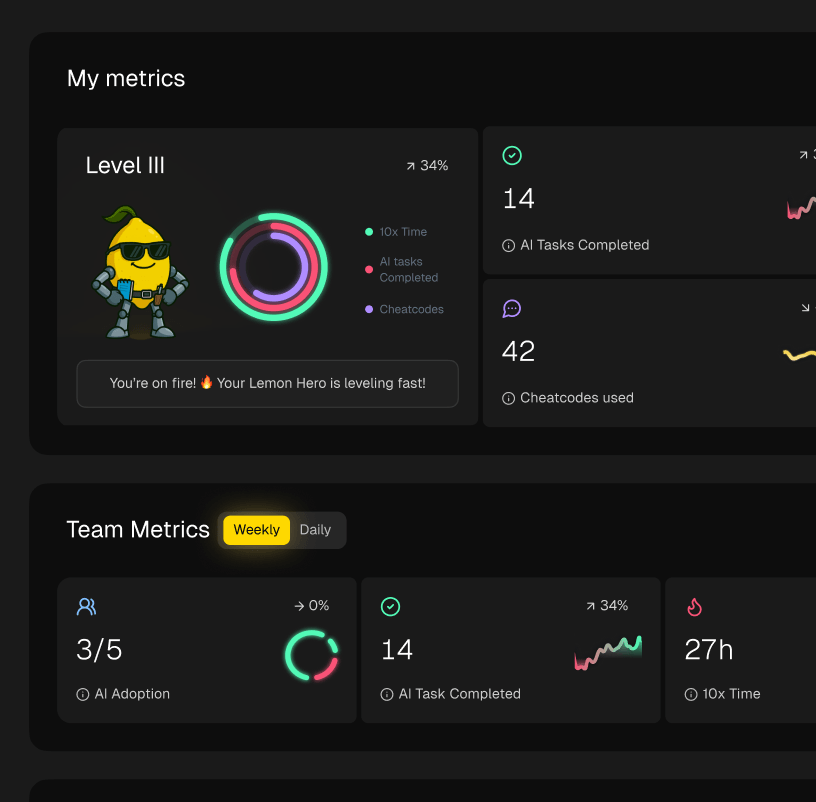
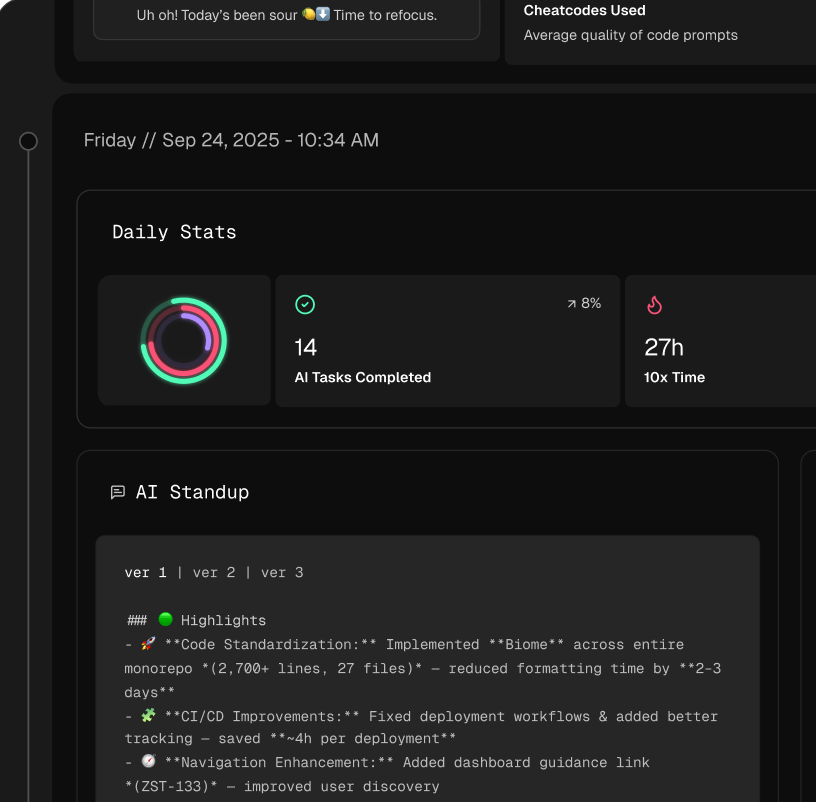
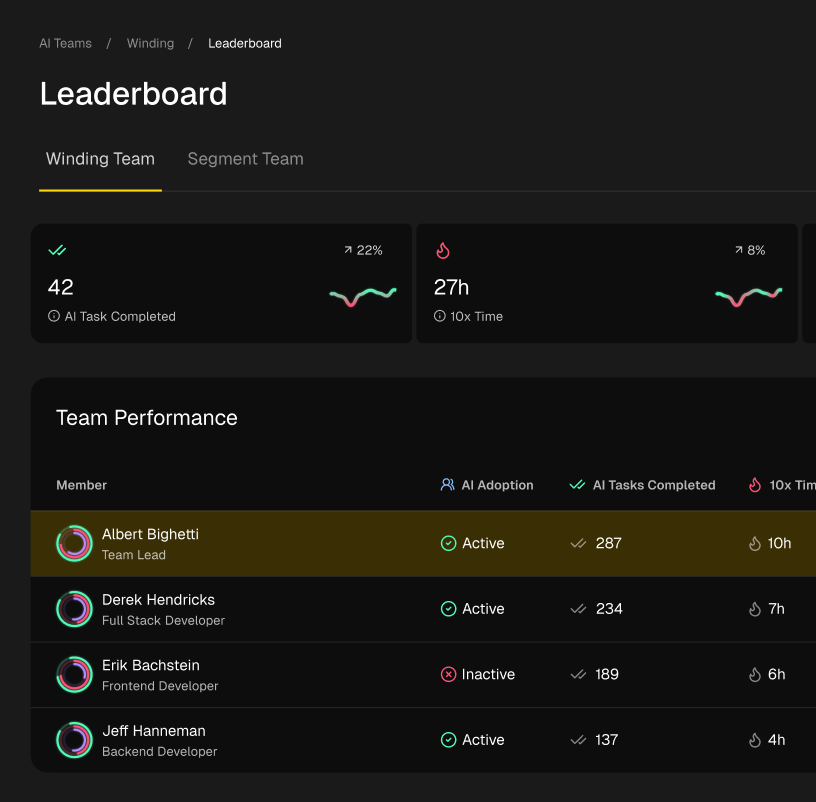
This is where tool-agnostic platforms come in. They give you a single pane of glass to see how AI is being used, no matter the editor. You can track which prompts are effective, see where developers are saving time, and identify winning AI interactions. This data allows you to build a shared library of “cheat codes”—proven prompts and workflows that anyone can use to get great results.
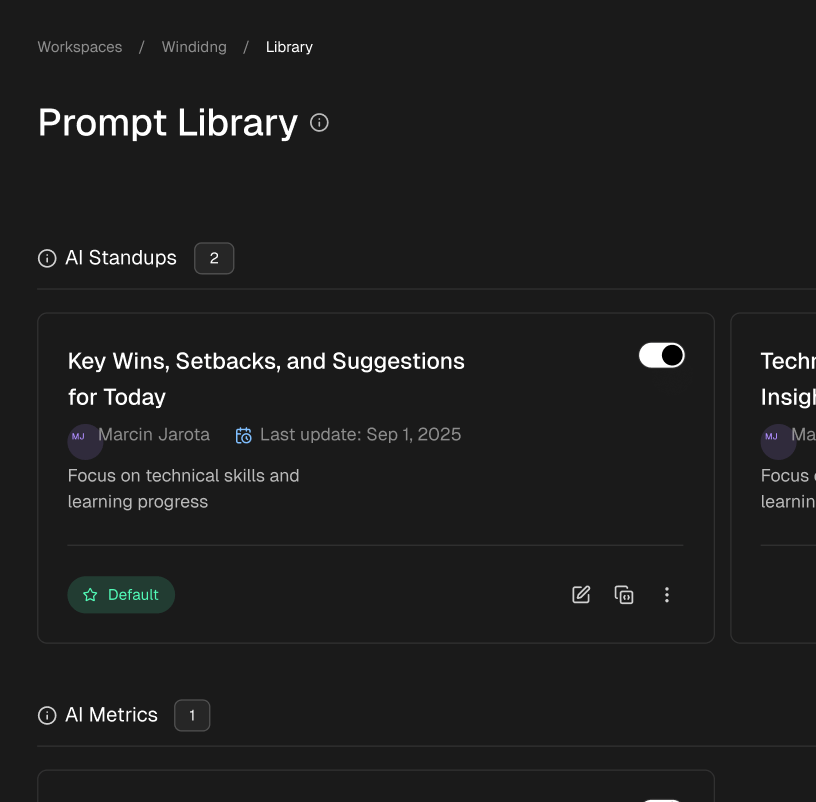
For example, a senior dev might find a brilliant refactoring prompt using an AI coding agent in IntelliJ. That same winning prompt can be captured, saved, and shared with a junior dev using Eclipse. This creates a consistent layer of AI best practices that works for everyone, helping the whole team level up together.
AI Workflow Scorecard
Use these benchmarks to measure and improve how your team uses AI assistants in any IDE.
📊 Core AI Metrics
- Prompt Effectiveness — What percentage of AI suggestions are actually accepted vs. ignored?
- Time Saved Per Task — How many minutes are we saving on common jobs like refactoring, debugging, or writing tests?
- AI Adoption Rate — How many developers are using an AI assistant in their day-to-day work?
🕹️ My Cheatcodes
- 🌱 Context is King — Give the AI your file context and state your goal clearly. Better input means better output.
- 🦎 Iterate on Prompts — Don't just take the first answer. Ask follow-up questions to guide the AI toward the best solution.
- ⚡ Share Winning Plays — When you find a prompt that works wonders, share it with the team.
📈 Reflection Points
- 💡 Is our team using AI consistently, even with different IDEs?
- 🧩 Are we actually measuring how much AI is improving our productivity?
- 📘 Do we have a system for sharing what works with our AI assistants?
Comparing Plugin Ecosystems and Framework Support
You can often tell the real story of an IDE by looking at its ecosystem. When you put IntelliJ IDEA vs Eclipse side-by-side, it’s clear their philosophies on plugins and framework support shape everything about how you’ll use them.
IntelliJ IDEA features the JetBrains Marketplace, a massive but well-curated collection of extensions. Since JetBrains sells the IDE itself, they have a vested interest in making sure plugins are stable and deeply integrated. This results in a polished, predictable experience where things tend to just work.
Eclipse has the Eclipse Marketplace, a sprawling, completely open-source repository. Its biggest advantage is its sheer size and long history. Need a plugin for some obscure legacy system? You’ll probably find it here, and it’ll likely be free. The catch is that quality can be a real mixed bag. Some plugins are fantastic and actively maintained, while others feel like abandoned projects from a decade ago.

Native Framework and Language Support
The real point of separation is how each IDE handles modern frameworks and languages right out of the box.
IntelliJ IDEA Ultimate Edition is practically built for today’s major enterprise frameworks. When you start a new project, it has dedicated modules and intelligent tooling for things like Spring, Jakarta EE, and Quarkus. This native support means you get smart code completion in your YAML files, instant database connections, and framework-aware run configurations without hunting for a single plugin.
Take Spring Boot for example. IntelliJ understands @Component annotations, tells you when a property in application.properties is misspelled, and integrates perfectly with the Spring Initializr. It’s a “batteries-included” approach that feels seamless and saves a ton of time.
Eclipse takes a more modular route. To get that same level of support for Spring or Jakarta EE, you’ll need to head to the marketplace and install a tool suite, like the Spring Tools 4 for Eclipse. These tools are powerful, but they often feel bolted on, like a separate application running inside your IDE rather than a core part of it.
The Bottom Line: IntelliJ IDEA Ultimate gives you first-class framework support from the get-go, creating a very cohesive experience. Eclipse can do the same job, but you’ll rely on community plugins that require more setup and can sometimes feel less integrated.
JVM Language Integration
Both IDEs are fantastic for Java, but things get interesting when you bring other JVM languages into the mix.
- Kotlin: JetBrains created Kotlin, so it’s no surprise that IntelliJ’s support is second to none. The refactoring, debugging, and code analysis are just as mature and fluid as its Java tooling. It’s a flawless experience.
- Scala: While you can use Scala in both IDEs via plugins, the IntelliJ Scala plugin (also made by JetBrains) is widely seen as the industry standard. It’s faster and more reliable, especially on complex projects that use advanced Scala features.
- Groovy: Both IDEs manage Groovy just fine. However, IntelliJ’s tight integration with Gradle—which uses Groovy for its build scripts—gives it a noticeable advantage in everyday development.
In the end, it really comes down to your team’s tech stack. If you’re building with modern tools like Spring Boot and Kotlin, IntelliJ’s all-in-one approach gives you a clear productivity win. If your world is more centered on a classic Jakarta EE stack or you simply prefer the open-source, build-it-yourself nature of Eclipse, its ecosystem is still incredibly capable.
Ecosystem Decision Scorecard
Use this to figure out which IDE’s ecosystem is a better fit for your stack and coding style.
📊 Core Metrics
- Plugin Quality Score — Check the ratings, last updated dates, and support activity for the plugins you can’t live without.
- Framework Integration Depth — How much out-of-the-box support is there for your main framework (like Spring or Quarkus)? Is it native or a plugin?
- Time-to-Productivity — How long does it take to get a new project up and running? A few minutes, or an afternoon of configuration?
🕹️ My Cheatcodes
- 🌱 Prioritize Native Support — For the frameworks you use daily, an IDE with built-in support will almost always save you headaches over one that needs plugins.
- 🦎 Audit Your Stack — Make a quick list of your essential languages and frameworks. See which IDE supports more of them out of the box.
- ⚡ Test the Marketplace — Before you decide, actually search each marketplace. Make sure the niche tools you rely on are available, up-to-date, and well-regarded.
📈 Reflection Points
- 💡 Does our team’s stack fit a “batteries-included” model, or do we prefer a “build-it-yourself” approach?
- 🧩 How much time am I really willing to spend tweaking plugins instead of writing code?
- 📘 Is the cost of a paid IDE worth the productivity boost I’d get from its tightly integrated ecosystem?
Making Your Final Decision: Pricing and Recommendations
Alright, let’s get down to the final piece of the IntelliJ IDEA vs. Eclipse puzzle: matching the right IDE to your budget, your role, and your team’s needs.
The money side of things is pretty straightforward. Eclipse has always been completely free and open-source. You can download it, install it on every machine in your company, and never pay a dime. It’s an incredibly powerful tool with zero financial barrier to entry.
IntelliJ IDEA takes a different approach with its freemium model. The Community Edition is free and fantastic for anyone doing straight Java, Kotlin, or Android development. But if you’re working with enterprise frameworks, other languages, or need advanced database tools, you’ll have to look at the paid Ultimate Edition, which runs on a subscription.
So, Who Should Use What?
Your day-to-day job is the best compass for navigating this choice. Here’s my take, based on years of seeing developers in these roles.
For Students and Beginners
- Go with IntelliJ IDEA Community Edition. Its smart suggestions and intuitive design don’t just help you write code; they actively teach you good habits. It’s a fantastic learning partner. Plus, many students can get a free license for the Ultimate Edition, so definitely check that out.
For Enterprise Java Developers
- This is where IntelliJ IDEA Ultimate really pays for itself. The time you save with its out-of-the-box support for Spring, Jakarta EE, and Quarkus is huge. When you factor in the best-in-class database tools and intelligent code completion, the subscription cost often becomes a no-brainer in terms of productivity gains.
- That said, Eclipse is still a perfectly solid choice. If your company has a long-standing Eclipse workflow or you’ve already mastered its plugin ecosystem, there’s no urgent need to switch. It gets the job done without costing a cent.
For Polyglot Programmers
- IntelliJ IDEA Ultimate is the clear winner here. If your work has you jumping between Java, Python, JavaScript, and Go, having a single, cohesive environment that understands all of them deeply is a game-changer.
- You can make Eclipse work for multiple languages with a bunch of plugins, but it often feels like a collection of separate tools bolted together rather than one unified experience.
For Engineering Managers
- Your job is to make the team effective, not to dictate tools. If your team is deep into modern Java frameworks, standardizing on IntelliJ IDEA Ultimate can genuinely shorten development cycles.
- But if you have a mix of veterans, newcomers, and specialists, focus on standardizing the process, not the IDE. As we’ve discussed, things like shared AI prompts or code metrics can work across any editor, let a developer use the tool where they’re most productive.
Final IDE Choice Scorecard
Still on the fence? Run through this final gut check to see which one fits best.
📊 Decision Metrics
- Total Cost of Ownership: Is the subscription fee for IntelliJ Ultimate a bigger deal than the time your team might spend configuring and maintaining an Eclipse setup?
- Framework Fit: Does the IDE support your main frameworks out of the box, or are you looking at a weekend of plugin hunting and configuration?
- Team Vibe: Does your team prefer an IDE that works perfectly on day one, or do they enjoy tinkering and customizing a tool to their exact liking?
🕹️ My Cheatcodes
- 🌱 Try Before You Buy: Seriously, use the 30-day trial of IntelliJ Ultimate on a real project. Track your time. You’ll know by the end if the productivity boost is worth the price.
- 🦎 Go Free First: Start with IntelliJ Community or Eclipse. Don’t pay for an upgrade until you hit a wall and can point to a specific feature that would save you time and frustration.
- ⚡ Focus on Workflows, Not Tools: For teams, the real win is a standard process. Agree on how you’ll use AI assistants, review code, and track metrics. That gives you flexibility on the IDE itself.
✅ Before You Commit
- 🔍 Double-check that your must-have language or framework is fully supported.
- 📊 Run the numbers. Does the subscription cost fit your personal or team budget?
- 🧭 See if you qualify for a free student or open-source project license.
- 📈 Ask your team. A quick poll can tell you a lot about their collective experience and preference.
Frequently Asked Questions About IntelliJ IDEA and Eclipse
Even after a detailed comparison, a few common questions always pop up when choosing between IntelliJ IDEA and Eclipse. Let’s tackle them head-on to clear up any lingering doubts.
Is IntelliJ IDEA Worth the Cost for a Solo Developer?
For a professional flying solo, IntelliJ IDEA Ultimate is almost always a smart investment. The time you save using its baked-in tools for databases, web development, and frameworks like Spring easily outweighs the subscription cost. You’re paying for fewer headaches and faster delivery.
That said, the free Community edition is a powerhouse for pure Java or Android development. It’s the perfect way to get a feel for the IntelliJ workflow without spending a dime. Give it a spin first before you decide on a paid plan.
Which IDE Is Better for Beginners Learning Java?
This one is tricky because they teach you different things. Eclipse, with its modular design, almost forces you to learn how the pieces of a development environment fit together. You’re building your toolkit from the ground up.
IntelliJ IDEA, on the other hand, gets you writing productive code much faster. Its smart assistance and intuitive design guide you toward modern coding practices from day one. It’s no surprise many universities now use it to teach Java fundamentals.
Key Insight: Think of it this way: Eclipse shows you the engine’s components, while IntelliJ just gives you the keys and lets you drive. Your choice depends on whether you learn better by assembling the car or by getting behind the wheel.
Can I Use Both IntelliJ IDEA and Eclipse?
Absolutely. Plenty of developers do. It’s quite common to use IntelliJ IDEA as your go-to for heavy-duty Java projects but keep a specific Eclipse installation or a lightweight editor like VS Code handy for other tasks. This hybrid approach lets you pick the best tool for the job without getting stuck in one ecosystem.
How Does VS Code Compare for Java?
VS Code has become a favorite for a reason—it’s fast, flexible, and great for developers juggling multiple languages. Its Java support through extensions is surprisingly good, but it’s not a true replacement for a dedicated IDE on large, complex applications.
For massive enterprise projects, the deep code intelligence and powerful refactoring you get from IntelliJ or Eclipse are still in a league of their own.
IDE Decision Cheatsheet
Still on the fence? Use this final scorecard to match an IDE to your actual day-to-day needs.
📊 Core Decision Metrics
- Time to Productivity: How many hours will you spend configuring tools versus writing actual code?
- Framework Support Depth: Does the IDE support your main framework out of the box, or will you be hunting for plugins?
- Team Workflow Consistency: How easily can you standardize refactoring patterns and even AI prompts across your team?
🕹️ My Personal Cheat Codes
Here are a few tips I’ve picked up over the years:
- 🌱 Free First: Always start with IntelliJ Community or a barebones Eclipse setup. Don’t pay for anything or add plugins until you hit a real limitation.
- 🦎 Test the Trial: Take the IntelliJ Ultimate 30-day trial for a spin on a real-world project. See if the productivity boost feels big enough to justify the price tag.
- ⚡ Standardize Process, Not Tools: If you’re leading a team, focus on creating shared standards—like common AI prompts and performance metrics—that work no matter which IDE a developer prefers.
✅ Before You Choose
Run through this final checklist:
- Framework Check: Confirm your primary framework (e.g., Spring) is a first-class citizen in the IDE.
- Budget Check: Does your budget have room for a paid subscription if the ultimate edition is what you need?
- Team Poll: Ask your team what they already know and prefer. Don’t fight an uphill battle.
- AI Adoption: Think about how your IDE choice will support new AI workflows and team-wide adoption down the line.
Master Your IDE Choice
Use these final takeaways to confidently select the Java IDE that perfectly matches your role, project needs, and team dynamics.
📊 Core Decision Metrics
- Time to Productivity — Hours spent configuring tools vs. writing business logic.
- Total Cost of Ownership — Subscription fees (IntelliJ) vs. maintenance time (Eclipse).
- Framework Integration Depth — Native "it just works" support vs. plugin-based configuration.
🕹️ My Cheatcodes
- 🌱 Free First — Start with IntelliJ Community or Eclipse; only upgrade when you hit a specific wall.
- 🦎 Test the Trial — Use the IntelliJ Ultimate 30-day trial on a real project to quantify its value.
- ⚡ Focus on Workflows — Standardize your team's AI prompts and processes, not their IDEs.
✅ Before You Decide
- 🔍 Poll your team for their preferences and experience.
- 📊 Check your budget for potential subscription costs.
- 🧭 Confirm first-class support for your primary frameworks.
- 📈 Qualify for student or open-source project licenses if possible.
Gallery
Lemon shots