Cursor AI Reviews Does It Beat VS Code for Developers?

For developers trying to gain an edge, Cursor is an AI-first code editor designed to weave artificial intelligence into every part of your workflow. The goal is to make it feel like you always have a senior developer sitting next to you, ready to help. It’s built on top of VS Code, so the environment feels instantly familiar but with AI capabilities baked right in.
This review will break down what Cursor really is and who will get the most out of using it.
What Is Cursor and Who Is It For
Cursor isn’t just another AI plugin like GitHub Copilot. It’s a complete rethinking of what an integrated development environment (IDE) can be. While most editors are passive—they just wait for you to type—Cursor is an active partner in the coding process.
The real magic is its ability to understand your entire codebase, not just the single file you have open.
Think of it this way: GitHub Copilot is like a great spell-checker for your code, suggesting the next word or line. Cursor, on the other hand, is like a seasoned editor who has read your entire novel. It knows the plot, the characters, and the tone, so it can give you advice on restructuring a chapter or improving the dialogue. Cursor does the same for your code, letting you refactor huge systems, squash bugs across multiple files, or build out new features from a single, simple instruction.
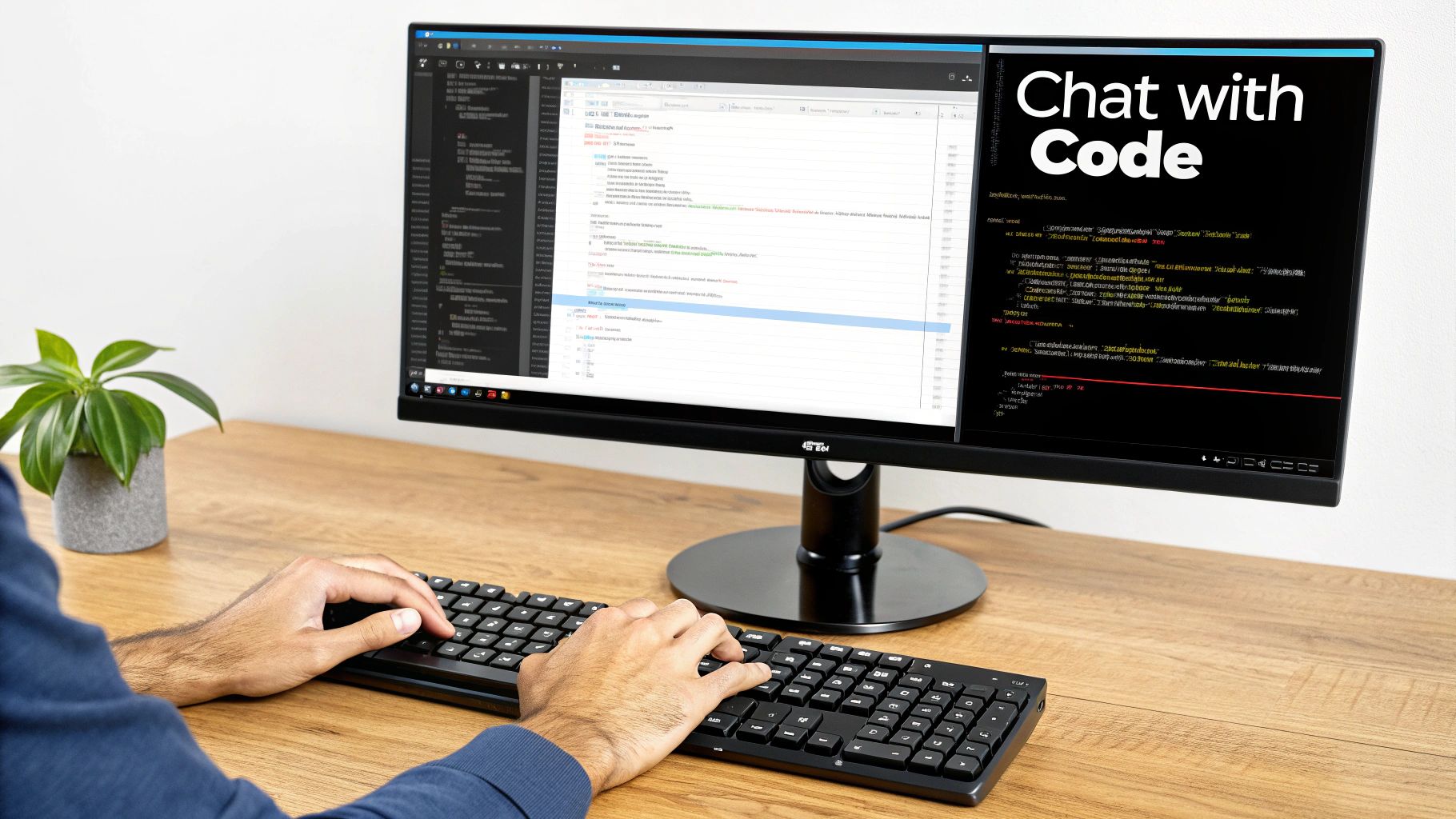
The interface looks and feels just like VS Code, but with AI chat and code generation seamlessly integrated.

This “AI Pair Programmer” concept is exactly what Cursor delivers—an assistant that lives right inside the tool you already know and use.
Who Benefits Most from Cursor
Just about any developer can find something to like in Cursor, but a few specific roles will see massive productivity gains right away. The tool is especially helpful for:
- Developers Onboarding to New Projects: It can take weeks to get your bearings in a large, unfamiliar codebase. With Cursor, you can just ask, “Where is the authentication logic handled?” or “Walk me through this legacy function,” and get immediate, accurate answers.
- Engineers Working on Complex Refactors: Need to rename a function or restructure a class that’s used across dozens of files? Cursor’s repository-wide awareness is a lifesaver. It tracks down dependencies and makes the changes with a level of precision that a manual find-and-replace could never achieve.
- Solo Developers and Freelancers: When you don’t have a team to bounce ideas off of, Cursor becomes an invaluable sounding board. It can help you brainstorm different approaches, write tedious boilerplate code, and even generate unit tests, letting you focus on the bigger picture.
The table below gives a quick summary of how different developers can get the most out of Cursor.
Cursor AI At a Glance
| Developer Type | Primary Benefit | Key Feature to Use |
|---|---|---|
| New or Onboarding Dev | Quickly understand unfamiliar codebases. | “Chat with codebase” for Q&A and explanations. |
| Senior or Staff Engineer | Accelerate large-scale refactors and migrations. | Repository-aware editing and “Generate” commands. |
| Solo Developer or Freelancer | Act as an AI thought partner and assistant. | Brainstorming in chat and auto-generating tests. |
Ultimately, it’s a tool for developers who want to spend their time thinking about high-level problems, not getting bogged down in the mechanics of writing code.
“I was just chatting with one of our senior engineers, and he mentioned that he barely types code anymore—he just types into the agent box in Cursor. I told him that is basically what I do these days as well (~80% of the time).”
In short, Cursor helps you focus on what you want to build, letting the AI handle more of the how.
How Cursor’s AI-First Features Work
The real magic of Cursor isn’t just one standout feature. It’s how AI is woven into the entire coding experience, turning your editor from a simple canvas for text into an active, intelligent partner. This changes everything—not just the way you type out code, but the way you approach problems from the start.
The key difference maker is its repository-wide context awareness. Most AI tools only see the single file you have open. Cursor, on the other hand, indexes your entire project. This gives it a deep understanding of how all the different files, functions, and dependencies are connected, allowing it to turn a fuzzy request into a precise, helpful action.
Chat With Your Codebase
The first thing you’ll probably notice is the chat panel. This isn’t just another chatbot; think of it as a specialist that has memorized every line of your codebase and is ready to answer questions. It’s your central command for talking to your project.
You can ask it complex, high-level questions that would normally send you on a multi-hour scavenger hunt through files:
- “Where is all the user authentication logic located, across both the frontend and backend?”
- “Walk me through the
processPaymentfunction and show me every file that calls it.” - “Which third-party APIs does this particular service rely on?”
Instead of spitting out generic documentation, Cursor gives you specific file paths, relevant code snippets, and explanations that make sense for your project. For anyone jumping into a messy legacy codebase, this is a lifesaver. It can shrink onboarding time from weeks down to just a few days.
For many developers, this feature alone is a primary reason to switch. The ability to query a complex project in plain English eliminates the tedious and often frustrating process of manual code archaeology.
Because it gets the full context, the AI can trace logic from start to finish, flag potential side effects of a change, and basically act like a senior engineer who’s been on the project for years.
Generate and Edit with AI
Beyond just answering questions, Cursor gets its hands dirty and actively helps you write and change code. This is where you really start to feel the boost in your day-to-day productivity. Forget writing boilerplate or repetitive functions; you can just ask the AI to do it.
Practical Use-Cases:
- Scaffolding New Components: Just highlight a folder and type, “Generate a new React component called
UserProfileCard. It needs props for a user’s name, avatar, and bio. Style it with some basic Tailwind CSS.” Cursor gets to work, creating the file and writing the component, even adding the necessary imports. - Writing Unit Tests: Pick a tricky function and tell the AI, “Write a full set of Jest tests for this. Make sure to cover edge cases like null inputs or empty arrays.” It handles one of the most important (and often skipped) parts of the development cycle for you.
- Refactoring Code: Highlight a block of code, hit the
Cmd+Kshortcut, and give a command like “Pull this out into a reusable function” or “Clean this up by converting the Promise chain to async/await.”
The whole process feels less like using a tool and more like you’re pair-programming with a very fast partner. The AI takes care of the mechanical stuff, freeing you up to think about the bigger picture—the architecture and the core logic. You can dive deeper into these powerful workflows with our guide on how to use Cursor effectively.
Automating Tedious Tasks
A huge chunk of a developer’s time is spent on non-coding tasks that are essential for keeping the codebase healthy. Cursor steps in and automates a lot of this grunt work, creating a much smoother workflow.
- One-Click Linter Fixes: Got a screen full of ESLint or Prettier warnings? Instead of fixing them one by one, a single “Fix Linter Errors” button has the AI analyze and apply the correct fix for each issue. It’s a huge time and sanity saver.
- Inline Documentation Search: If you stumble upon a function or library you don’t recognize, you can just ask Cursor right in the editor: “Show me the docs for
Array.prototype.reduce.” It pulls up what you need instantly, so you never have to leave your editor and break your focus.
These might seem like small quality-of-life improvements, but they add up fast. By cutting out the constant context-switching and manual chores, Cursor helps you stay in the zone, letting you build, debug, and ship code faster than ever.
What Real Developers Are Saying
To get the real story on Cursor, you have to go beyond the marketing hype. I’ve spent time digging through threads on Reddit, X (formerly Twitter), and a bunch of developer forums to get a feel for what people actually think—the good, the bad, and the buggy. These are the patterns that keep popping up.

There’s a strong consensus on one thing: when Cursor nails it, it feels like cheating. It’s less of a tool and more of a fundamental change to how you write and think about code.
The Overwhelming Positives
The single biggest win everyone talks about is the sheer productivity jump. Developers are reporting huge time savings on everything from massive refactoring jobs to scaffolding new features. This is especially true for anyone moving over from a standard VS Code setup.
- Seamless VS Code Transition: Since Cursor is built on VS Code, moving over is practically effortless. You keep your themes, your extensions, and all your hard-earned keybindings. You just get a powerful AI baked right in. It makes trying it out a no-brainer.
- Rapid Onboarding and Code Exploration: I’ve seen countless comments about how Cursor slashes the time it takes to get up to speed on an unfamiliar codebase. Instead of spending days tracing logic through files, you can just ask the AI questions. It’s a game-changer for new hires or anyone jumping into a messy legacy project.
- Intelligent Refactoring: The AI’s ability to understand the entire repository is where it really shines. Users rave about being able to run complex refactors across dozens of files with a single prompt—a task that would normally be a tedious, error-prone nightmare.
“I was just chatting with one of our senior engineers, and he mentioned that he barely types code anymore—he just types into the agent box in Cursor. I told him that is basically what I do these days as well (~80% of the time).”
This quote gets to the heart of many positive cursor ai reviews. The editor stops being a passive tool and starts feeling like an active collaborator, freeing you up to think about the bigger picture.
The Real-World Criticisms
But it’s not all sunshine and rainbows. For all the praise, developers are also quick to point out where Cursor stumbles. It’s important to go in with realistic expectations.
A recurring complaint is that the AI can be unreliable. People share stories of “hallucinations” where it confidently spits out code that’s just plain wrong, inefficient, or riddled with subtle bugs. This means you can’t blindly trust it; you always have to be the senior developer in the room, double-checking its work.
Here are the most common frustrations I’ve seen mentioned:
- Performance on Large Projects: Cursor is powerful, but it can get bogged down in massive repositories. On enterprise-scale projects with hundreds of thousands of files, users report lag, slow indexing, and even occasional crashes.
- The Prompt Engineering Learning Curve: There’s an art to talking to the AI. Vague prompts get you vague results. You have to learn how to give it the right context and frame your requests clearly to get what you want, and that can take some getting used to.
- Cost vs. Perceived Value: The monthly subscription for the Pro plan can feel a bit steep, especially for solo devs or those on the free plan who keep hitting the usage limits. It really comes down to a personal calculation: does the time you save justify the price tag?
In the end, the community feedback paints a picture of a brilliant but flawed tool. The productivity gains are real and often staggering. But you have to be ready for the occasional performance hiccup and the AI’s inherent unpredictability. The developers who get the most out of Cursor treat it like a very capable, very fast junior developer—one that still needs your guidance and oversight.
Is Cursor Actually Worth the Money? Let’s Talk Pricing.
Sooner or later, every developer’s evaluation of a new tool comes down to one question: what’s it going to cost me? With an AI-native code editor like Cursor, you’re not just buying a piece of software; you’re investing in a tool that promises to save you time. The real question isn’t about the price tag, but whether the return on that investment makes sense.
If Cursor can shave even a couple of hours off your work week, the subscription pretty much pays for itself. Thinking about the value is a bit like decoding transcription service cost—it’s all about what you get back for what you put in. For developers, the most valuable resource is time, and that’s exactly what Cursor is selling.
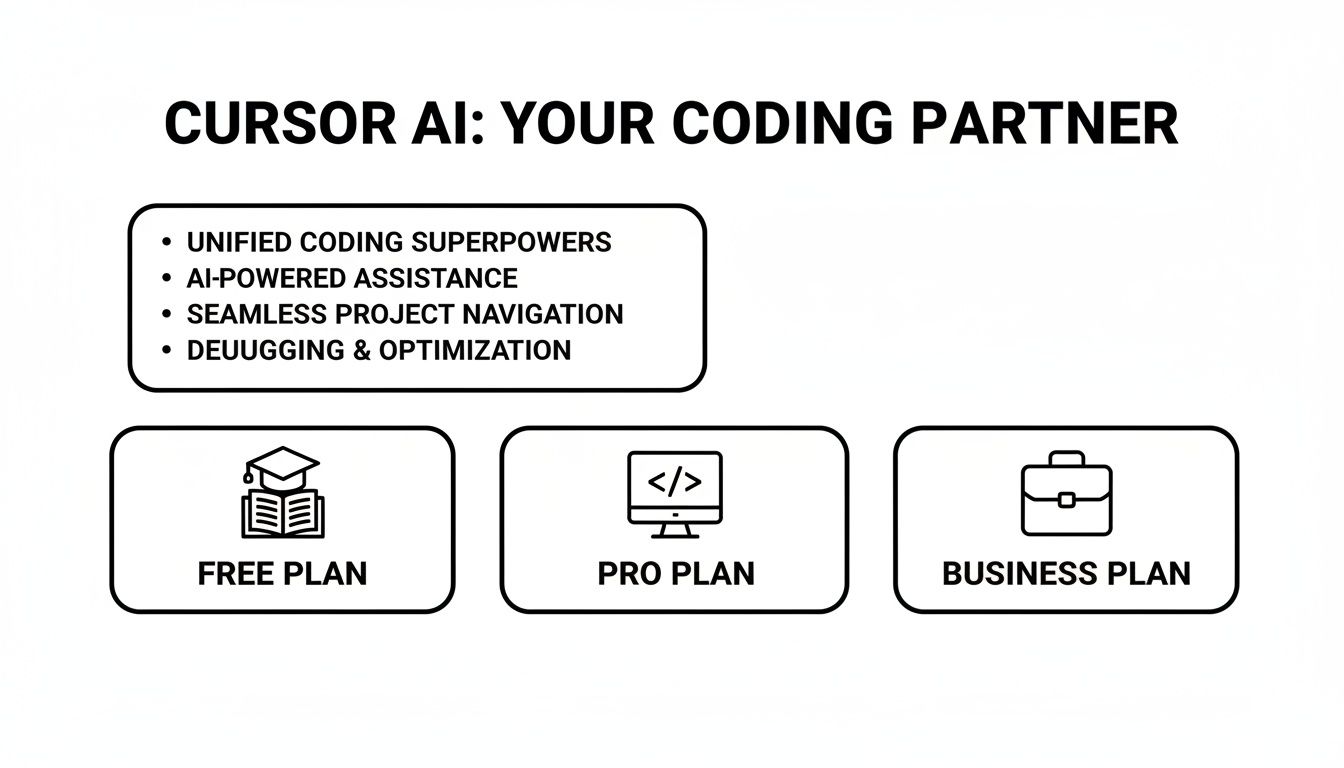
The Free Plan: A No-Risk Test Drive
Cursor’s free tier is a great way to get your feet wet. You get a limited number of “fast” AI prompts (powered by models like GPT-4) and a much larger amount of “slow” ones that use less advanced models.
It’s a perfect fit for a few types of users:
- Students and newcomers: If you’re learning to code, you can use the AI to help grasp new concepts without spending a dime.
- The VS Code veteran: Already comfortable in your setup? The free plan lets you see what all the fuss is about and test the core AI features before committing.
The biggest catch is that you’ll likely burn through your “fast” requests pretty quickly if you’re in the middle of a serious coding session. It’s essentially a forever-trial—great for dabbling, but not quite enough for a full-time pro.
Pro and Business Plans: Where the Real ROI Kicks In
This is where you start doing the math. The Pro plan, designed for individual developers, gives you unlimited “slow” requests and a hefty allowance of “fast” ones. It completely removes that “should I use a prompt for this?” hesitation, letting you lean on the AI whenever you need it. The main benefit here is raw speed—less time spent on tedious debugging, boilerplate code, and Stack Overflow rabbit holes really adds up.
The Business plan takes it a step further for teams with a few key additions:
- Centralized Billing: Makes life easier for engineering leads and managers.
- Tighter Security: Offers better control over code privacy and data.
- Team Features: Helps your whole team share effective prompts and workflows.
For a team, the ROI becomes even more obvious. Think about it: if Cursor helps a junior dev ramp up in a week instead of a month, or cuts down code review time by 15%, the cost is a drop in the bucket.
The math is simple: if Cursor saves a developer with a six-figure salary just two or three hours a month, the Pro plan has already paid for itself.
And it seems the market agrees. The tool’s insane growth is a huge signal of its value. Market summaries report that Cursor generated roughly $100 million in revenue in a single year, with a valuation around $2.6 billion. Jumping from an estimated $1 million to $100 million in ARR year-over-year is almost unheard of, suggesting it’s one of the fastest-growing SaaS products ever in the dev tools space. That kind of growth only happens when developers feel they’re getting a massive return. You can dig into more of the numbers on this growth over at DevGraphiq’s Cursor statistics page.
Cursor AI vs GitHub Copilot and Other Tools
No tool exists in a vacuum, and when it comes to AI coding assistants, the competition is heating up. The biggest question developers have is, “How is this different from GitHub Copilot?” It’s a great question, and the answer really gets to the heart of what makes each tool unique.
The core difference isn’t about which one is “smarter” but how they’re designed. Think of it this way: GitHub Copilot is an AI assistant in your editor, while Cursor is an AI-native environment as your editor. It might seem like a small detail, but it completely changes how you work.
Copilot is fantastic at autocompletion and suggesting the next few lines of code. It’s an absolute powerhouse for cutting down on boilerplate and just typing faster. But its knowledge is mostly skin-deep, limited to the files you currently have open. It doesn’t really have a persistent, big-picture understanding of your entire codebase.
Cursor, on the other hand, was built from the ground up to be context-aware. It indexes your entire project, creating a mental map of how every function, class, and module is wired together. This lets it tackle complex, repository-wide tasks that Copilot just can’t handle, like refactoring a feature that touches a dozen files or explaining how a dusty old part of the system actually works.
AI Code Editor Feature Comparison
To really see where each tool shines, let’s put them side-by-side on some common developer tasks.
| Feature | Cursor AI | GitHub Copilot | JetBrains AI Assistant |
|---|---|---|---|
| Code Generation | Excellent for large blocks, files, and scaffolding new features. | Best-in-class for line-by-line and function-level autocompletion. | Strong, with deep integration into JetBrains’ powerful IDE refactoring tools. |
| Codebase Context | Its greatest strength. Understands the entire repository for complex Q&A. | Limited context, primarily focused on open files and related tabs. | Good context within the JetBrains ecosystem, but less focused on natural language Q&A. |
| Refactoring Power | Can perform complex, multi-file refactors with a single prompt. | Primarily assists with single-file refactoring and renaming. | Industry-leading traditional refactoring, now augmented with AI suggestions. |
| User Experience | A seamless, integrated AI-native environment built on VS Code. | A powerful plugin that enhances a standard VS Code or JetBrains setup. | Deeply integrated into the familiar JetBrains IDE experience for existing users. |
| Primary Use Case | Acting as an AI pair programmer for high-level tasks and problem-solving. | Accelerating the manual process of typing code and writing functions. | Supercharging the existing, powerful features of IDEs like IntelliJ or PyCharm. |
The choice really boils down to what you’re trying to achieve. Copilot is for developers who want help typing faster. Cursor is for developers who want help thinking faster by offloading entire chunks of work.
Bringing in Other Competitors
Of course, the field is bigger than just these two. The JetBrains AI Assistant is another heavyweight, designed to plug directly into IDEs like IntelliJ IDEA, PyCharm, and WebStorm. Its biggest advantage is how it taps into the IDE’s already powerful code analysis and refactoring engines. If you live and breathe the JetBrains ecosystem, their AI Assistant is a natural and very effective upgrade.
And then there’s a whole world of other tools popping up, each with its own spin on AI-assisted development. We’ve actually put together a deep dive on some of the best Cursor alternatives in our detailed guide, covering tools that focus on different models, workflows, or integration styles.
Ultimately, the right tool is the one that fits your needs. If you’re looking for an amazing autocomplete to speed up your typing, GitHub Copilot is a fantastic choice. If you’re a dedicated JetBrains user, their AI Assistant is a no-brainer.
But if you want to fundamentally change your workflow by delegating complex, project-wide tasks to an AI partner, Cursor offers a pretty compelling vision of the future. It’s not just an add-on; it’s a whole new way of building software.
So, What’s the Final Verdict?
After digging into the features, listening to what developers are saying, and stacking it up against the competition, the big question remains: should you actually switch to Cursor?
Honestly, there’s no simple yes or no. It really boils down to your role, what your team needs, and whether you’re open to a new, AI-first way of working. Cursor isn’t just another editor—it’s a fundamental shift. You move from being the person who writes every single line of code to the person who directs an AI partner.
The value proposition is pretty clear: you pay a monthly fee to get back time and free up mental energy. For a lot of us, that’s a trade worth making.
Who Is Cursor Really For?
Your decision will probably hinge on the specific problems you face every day. Here’s my take on who gets the most out of it.
- For Solo Developers and Freelancers: The Pro plan is a no-brainer if you’re constantly jumping into large, unfamiliar codebases or handling big refactoring jobs. Being able to get up to speed on a new project in hours instead of days, or getting an AI “second opinion” on a tricky problem, is a huge advantage. If it saves you even a few billable hours a month, it pays for itself.
- For Development Teams: This is where the Business plan starts to shine. It can dramatically slash the time it takes to onboard new engineers. It can streamline code reviews by letting the AI do a first pass. It can even help enforce coding standards across the team. It’s less about one person coding faster and more about making the entire team more effective.
- For CTOs and Engineering Managers: You’re thinking about the big picture. Giving your team a tool like Cursor can lead to faster release cycles and a more innovative engineering culture. It’s an investment in keeping your team ahead of the curve. You can read more about how these tools are changing the game in our guide to Cursor and developer productivity.
A Clear-Eyed Look at Strengths and Weaknesses
To make the right call, you need to see both sides of the coin.
Cursor’s superpower is its deep, repository-wide context. It turns your editor from a blank slate into an active collaborator that actually understands how your entire project is architected.
The Good Stuff:
- Deep Codebase Context: It has an uncanny ability to answer complex questions that span your entire project and pull off multi-file refactors that would otherwise take hours.
- Feels Like VS Code: The transition is almost seamless for the millions of developers already using VS Code. You get to keep your favorite themes, extensions, and keyboard shortcuts.
- Real Workflow Acceleration: It genuinely cuts down the time you spend on boring, repetitive work like writing boilerplate code, generating unit tests, or digging through legacy files.
The Not-So-Good Stuff:
- AI Can Get It Wrong: The model still hallucinates sometimes, spitting out code that’s incorrect or just plain buggy. You always need a human in the loop to review its work.
- It Can Be a Resource Hog: Some developers have reported lag and high memory usage, especially when working in massive, enterprise-scale repositories.
- The Price Tag: While the ROI is clear for many, that monthly subscription for the Pro features can be a sticking point for solo devs or those on a tight budget.
At the end of the day, Cursor is a forward-thinking tool that gives you a real taste of what software development is becoming. It requires a mental shift—you become less of a coder and more of an AI director. But for those willing to make that leap, the productivity boost is undeniable.
Mastering the Cursor Workflow
Transform your coding sessions from a grind into an AI-powered sprint. Here’s how.
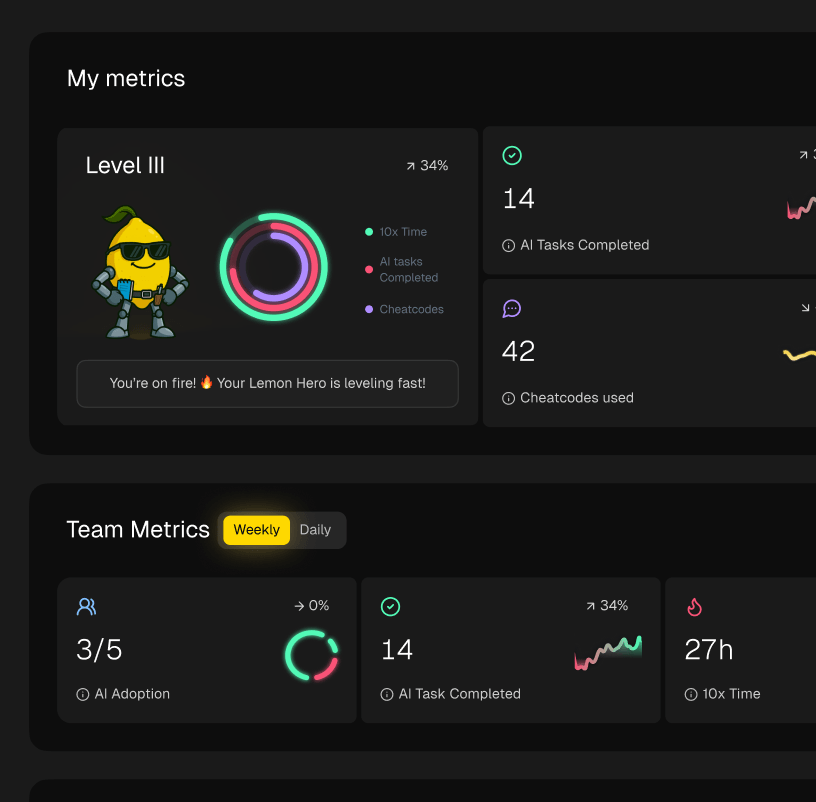
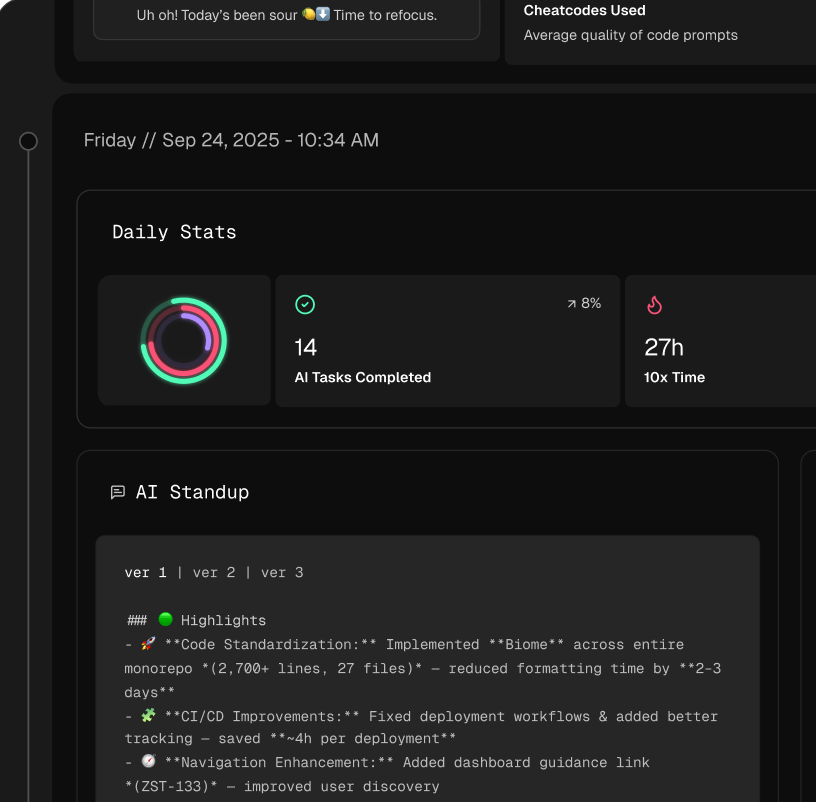
📊 The Metrics That Matter
- Onboarding Time — How many hours did you save getting familiar with a new or legacy codebase?
- Refactor Efficiency — Compare the time it takes to make multi-file changes manually versus with a single AI prompt.
- Tasks Automated — Count how many boilerplate components, unit tests, or doc lookups the AI handled for you.
🕹️ My Go-To “Cheat Codes”
- 🌱 Context is King — Always feed it the right files (
@file) or code snippets before asking it to do anything complicated. - 🦎 Iterate Your Prompts — Start broad, then get more specific. Refining your requests with follow-up instructions yields much better results.
- ⚡ Verify, Then Trust — Treat everything the AI generates as a first draft. Always review and test it before you commit.
📈 Questions to Ask Yourself
- 💡 Am I offloading the right tasks? Things like boilerplate, tests, and documentation are perfect for the AI.
- 🧩 Is the time I’m saving on simple stuff giving me more brainpower for a really hard problem?
- 📘 How much faster can I find my way around a part of the codebase I’ve never seen before?
Common Questions, Answered
If you’re thinking about making the switch to an AI-native editor like Cursor, you probably have a few questions. Let’s tackle the big ones I see pop up all the time in developer communities.
Will My VS Code Extensions and Themes Still Work?
Yes, and this is probably Cursor’s smartest feature. Since it’s built directly on top of VS Code (it’s a “fork”), it works with pretty much every extension, theme, and keybinding you’ve already spent years perfecting.
This makes the switch incredibly smooth. You don’t have to give up the familiar look and feel of your setup just to get the new AI features. It feels less like moving to a new house and more like getting a major upgrade to your existing one.
How Does Cursor Handle My Code’s Privacy?
This is a huge deal, and rightly so. To work its magic, Cursor has to send snippets of your code and other project context to AI models from providers like OpenAI.
According to their privacy policy, they don’t use your private code to train their own models. For an extra layer of control, you can use a .cursorignore file, which works just like .gitignore. You can tell it to completely ignore sensitive files or entire folders, ensuring they never leave your machine. For businesses, the Enterprise plan offers even stricter data privacy controls that are worth a close look.
Is Cursor Actually Better Than GitHub Copilot?
They’re different tools for different jobs, so it’s less about “better” and more about what you need at the moment.
GitHub Copilot is a master of autocompleting the line you’re currently writing. It’s fantastic for speeding up the physical act of typing code and suggesting small functions on the fly.
Cursor, on the other hand, is built to understand your entire project. Think bigger. Use it to refactor a feature that touches five different files, or to generate a brand new component based on the patterns it sees elsewhere in your codebase. If you need a quick suggestion for the next line, Copilot is your tool. If you need an AI assistant that can reason about your whole project, Cursor has the edge.
Ready to see how an AI-native workflow can transform your productivity? Zest helps you measure and optimize your AI coding habits in Cursor and VS Code, turning every session into a learning opportunity for you and your team. Discover what’s working and ship faster at https://meetzest.com.
Level Up Your Cursor Workflow
For those willing to make the leap, the productivity boost is undeniable—here's how to capture it.
📊 Core Metrics
- Time to First Commit — How quickly can you understand and contribute to a new codebase?
- Refactor Speed — Measure hours saved on complex, multi-file changes vs. manual edits.
- AI-Handled Tasks — Count the number of unit tests, components, or docs generated per week.
🕹️ My Cheatcodes
- 🌱 Context First — Give the AI specific files (`@file`) before asking it to generate or edit code. Better input, better output.
- 🦎 Iterate Prompts — Don't expect a perfect answer on the first try. Start broad, then refine with follow-up instructions.
- ⚡ Trust but Verify — Treat AI output as a draft from a junior dev. It's a great starting point, but always needs your expert review.
📈 Reflection Points
- 💡 Did I offload tedious work (boilerplate, tests) to save mental energy for complex problems?
- 🧩 Am I using repository-wide context to ask questions I couldn't before?
- 📘 Have I adapted my workflow to be an AI director instead of just a coder?
Gallery
Lemon shots